
How to Connect Read.ai to Arkweaver
Many Arkweaver customers record their conversations.
Prerequisites in Read.ai
First we need to make sure you are setup correctly in read.ai as a user.
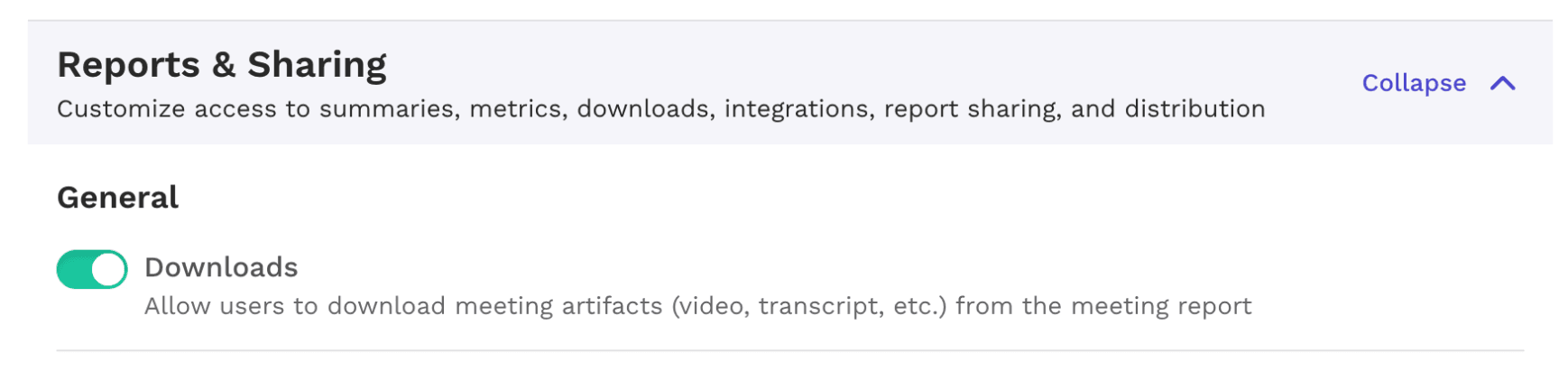
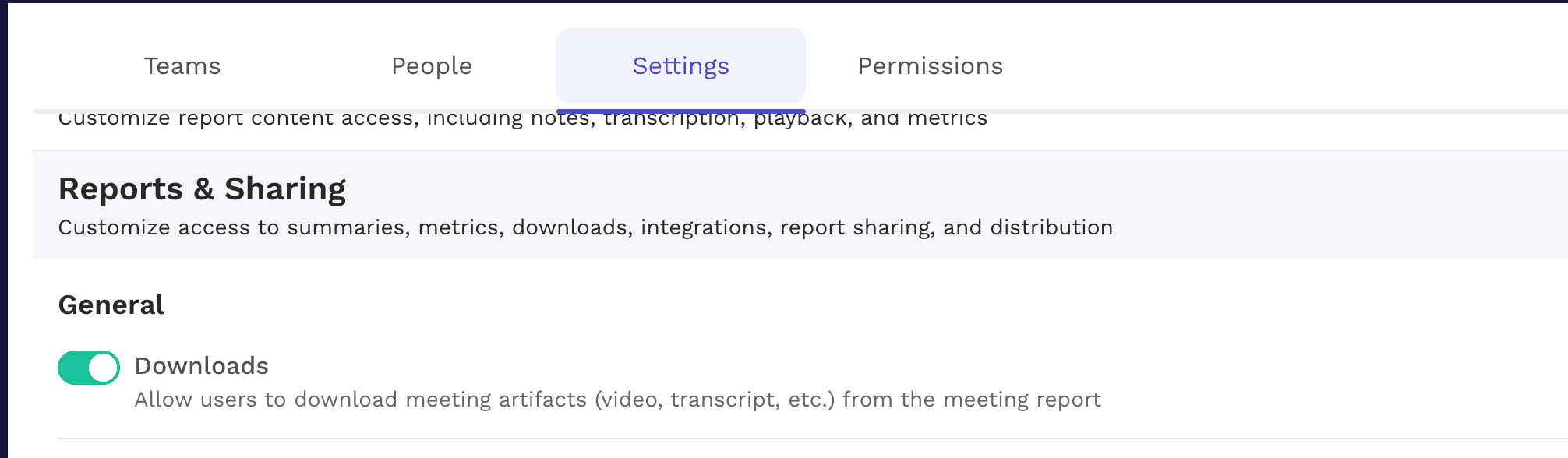
If you belong to a workspace, it must have the Downloads option enabled in Workspace Settings > Reports & Sharing:
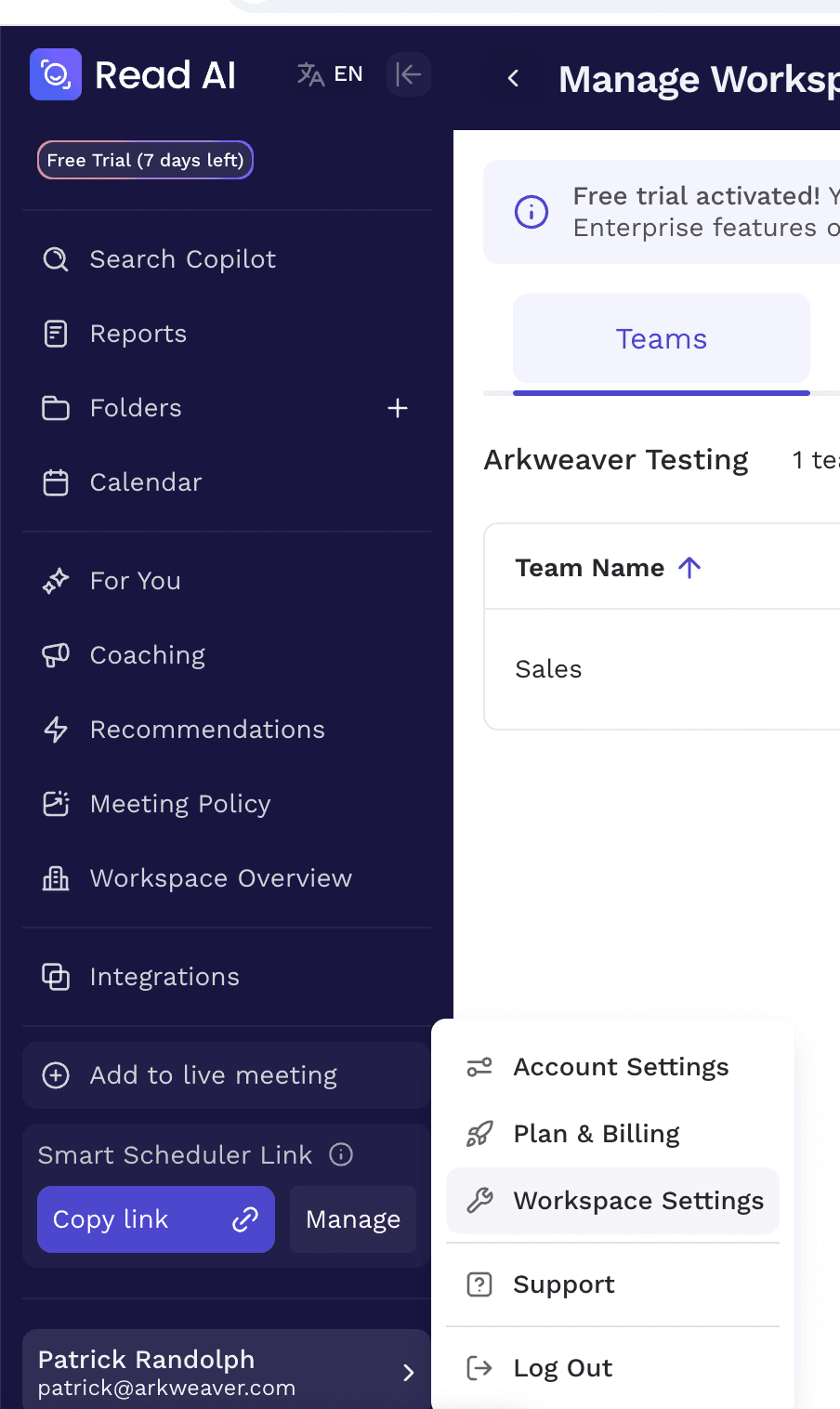
To find this, go to Workspace Settings
- Then Settings
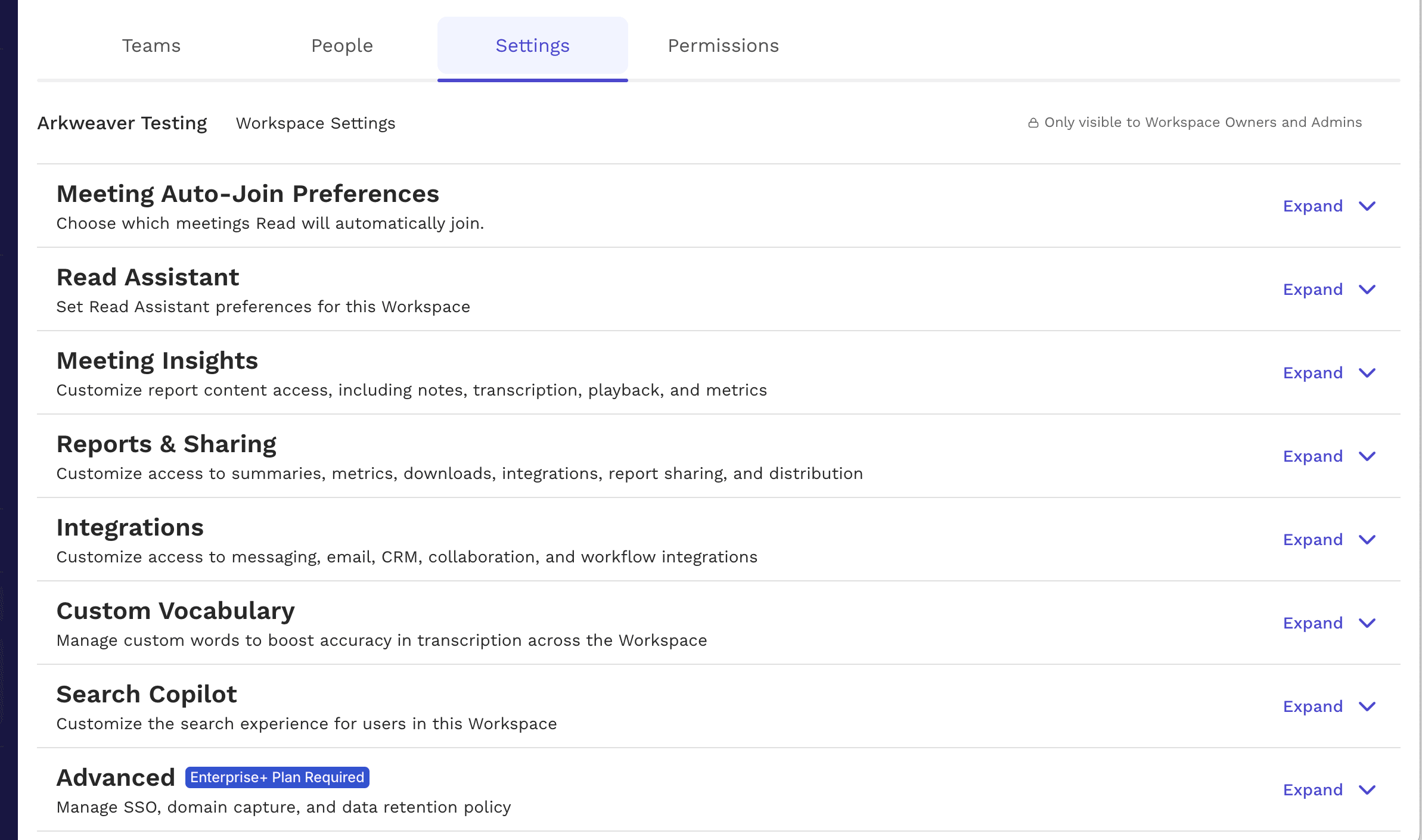
Click Reports & Sharing
Owner Settings in Read.ai
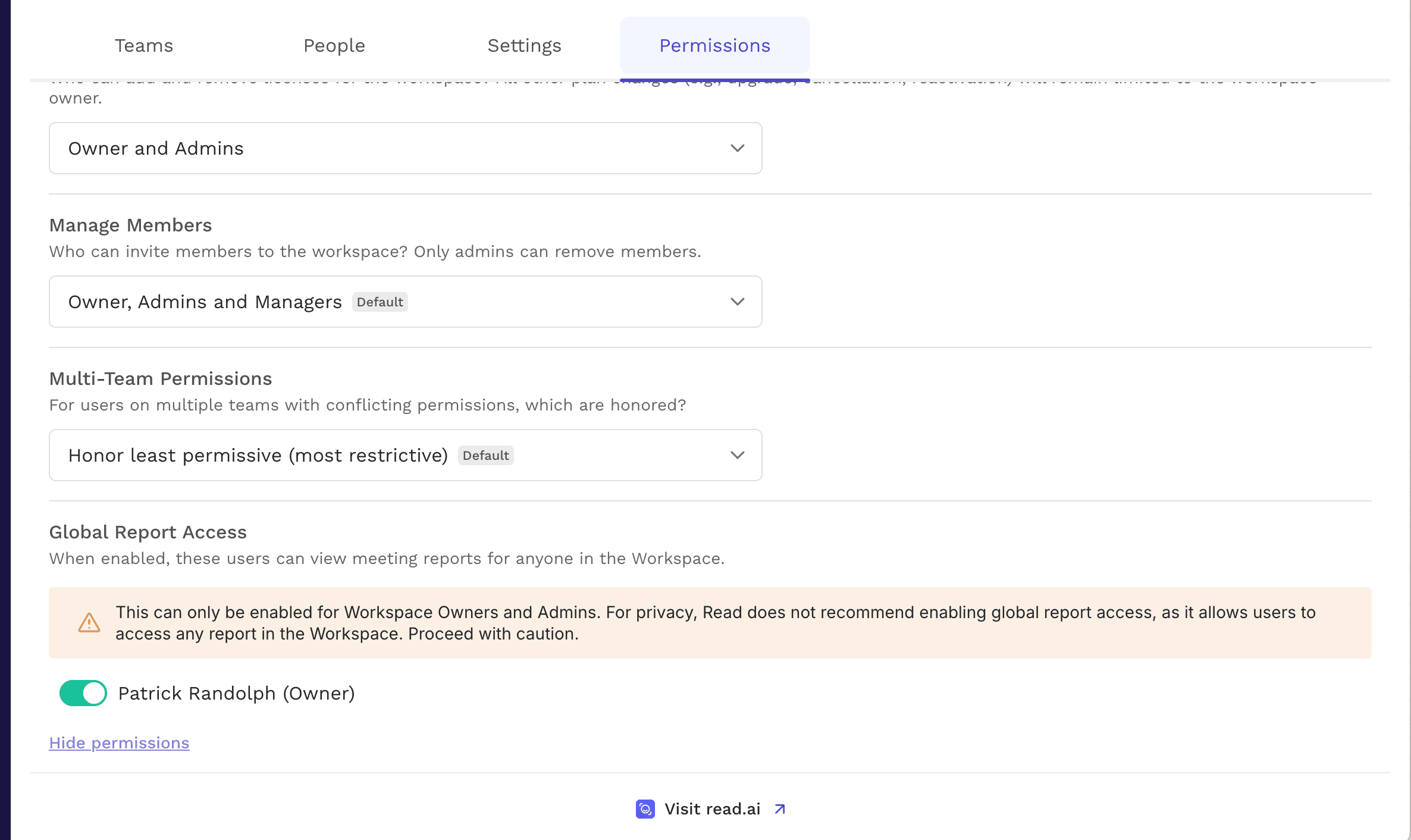
To setup such that all transcripts from your team, not just your own, are fed into Arkweaver, there is a few additional setups for the Owner. You most likely have already done this when you setup Read.ai, but it never hurts to check!
1. In Workspace Settings click Permissions and ensure that you have Global Report Access
Connecting Read.ai to Arkweaver
Now it's a simple click of a button and you are connected.
- Go to https://readai.arkweaver.com/
- Click "Connect Read AI" and then you are done.
Enjoy!