
How to Connect Read.ai to Arkweaver
Many Arkweaver customers record their conversations.
Prerequisites in Read.ai
First we need to make sure you are setup correctly in read.ai as a user.
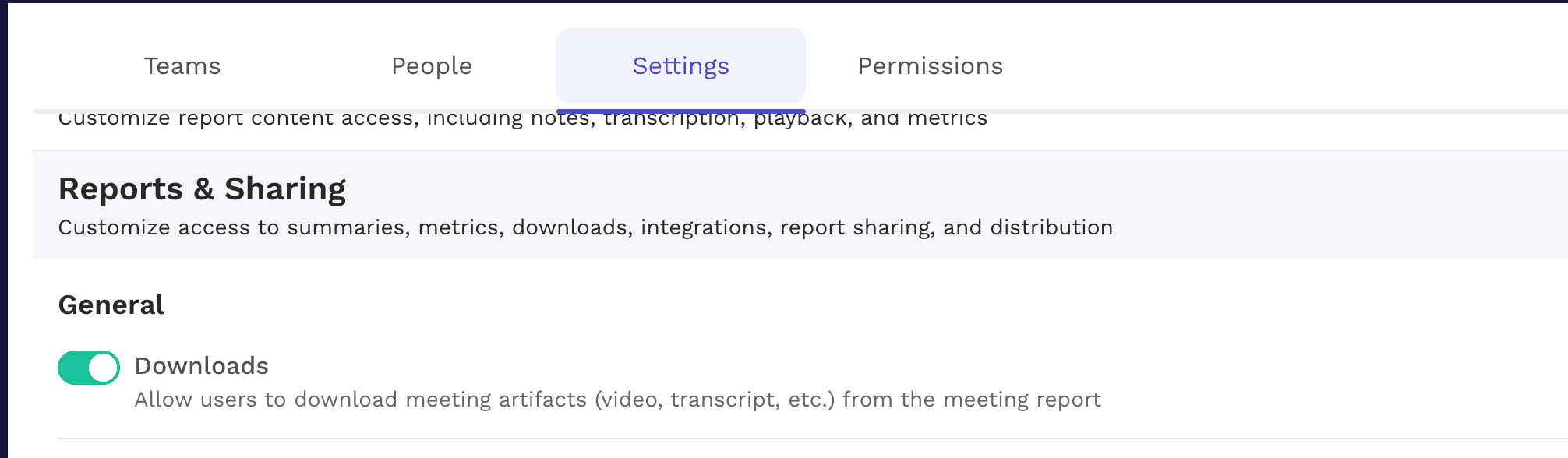
If you belong to a workspace, it must have the Downloads option enabled in Workspace Settings Reports & Sharing:
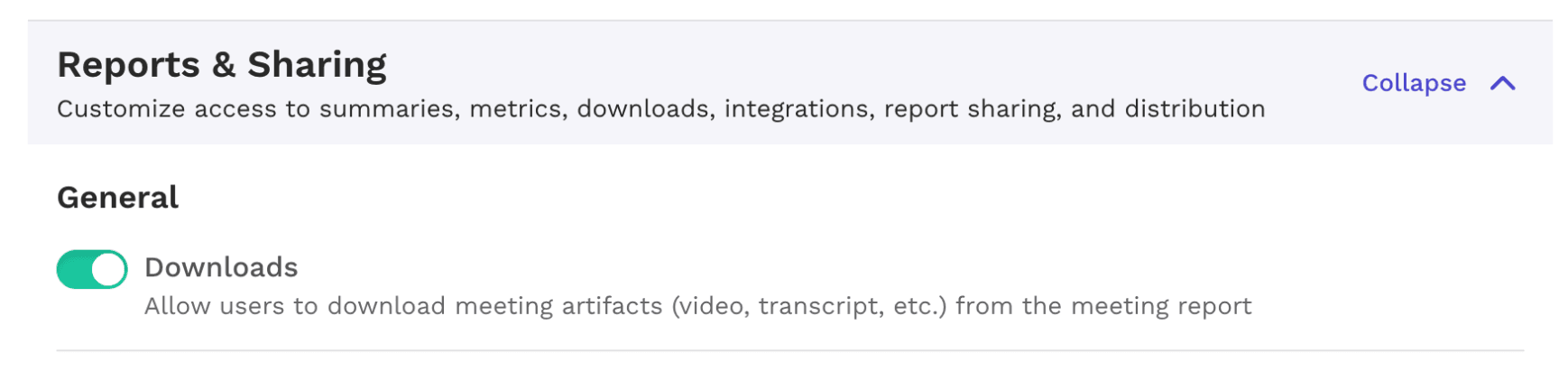
To find this:
- Go to Workspace Settings
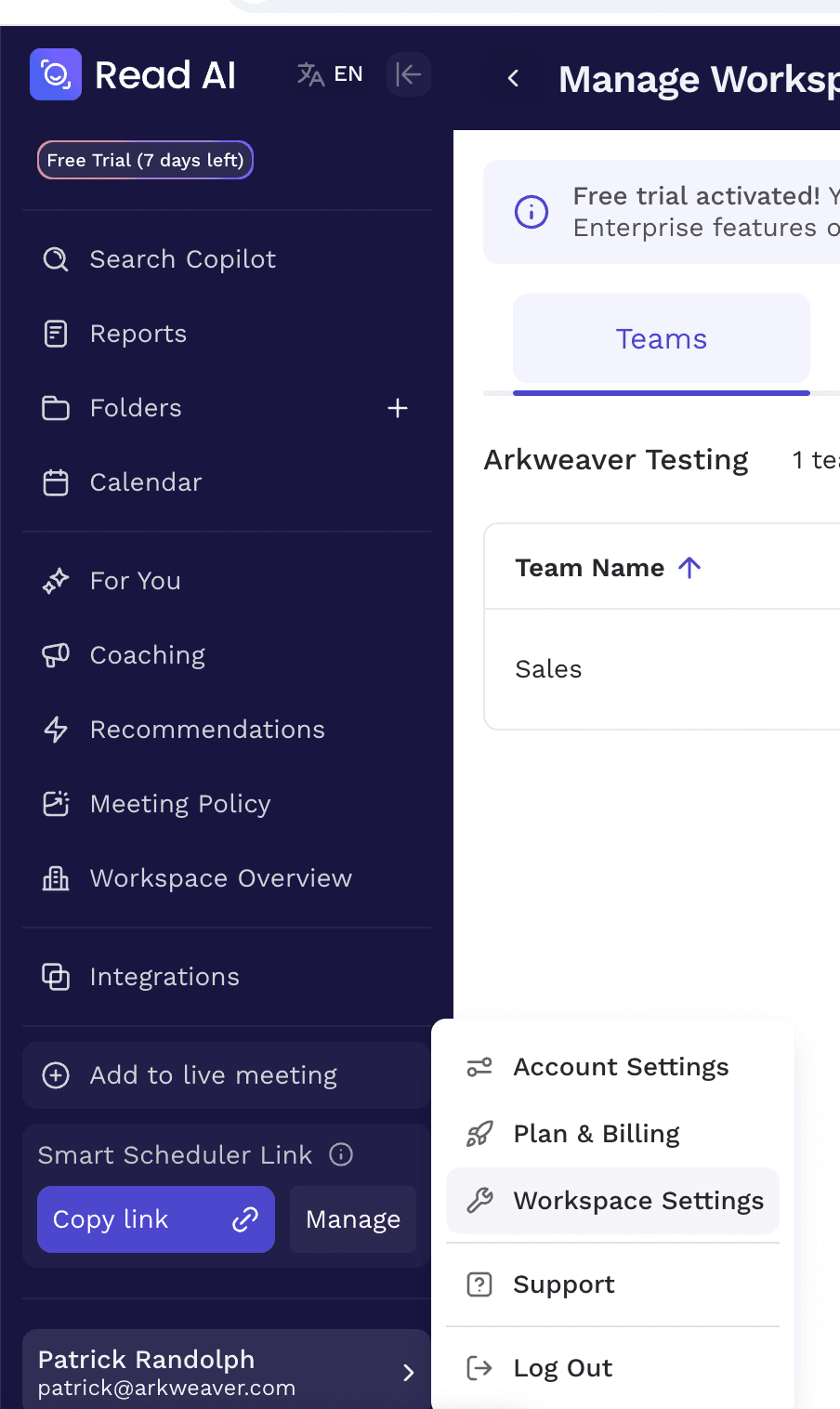
- Then click Settings
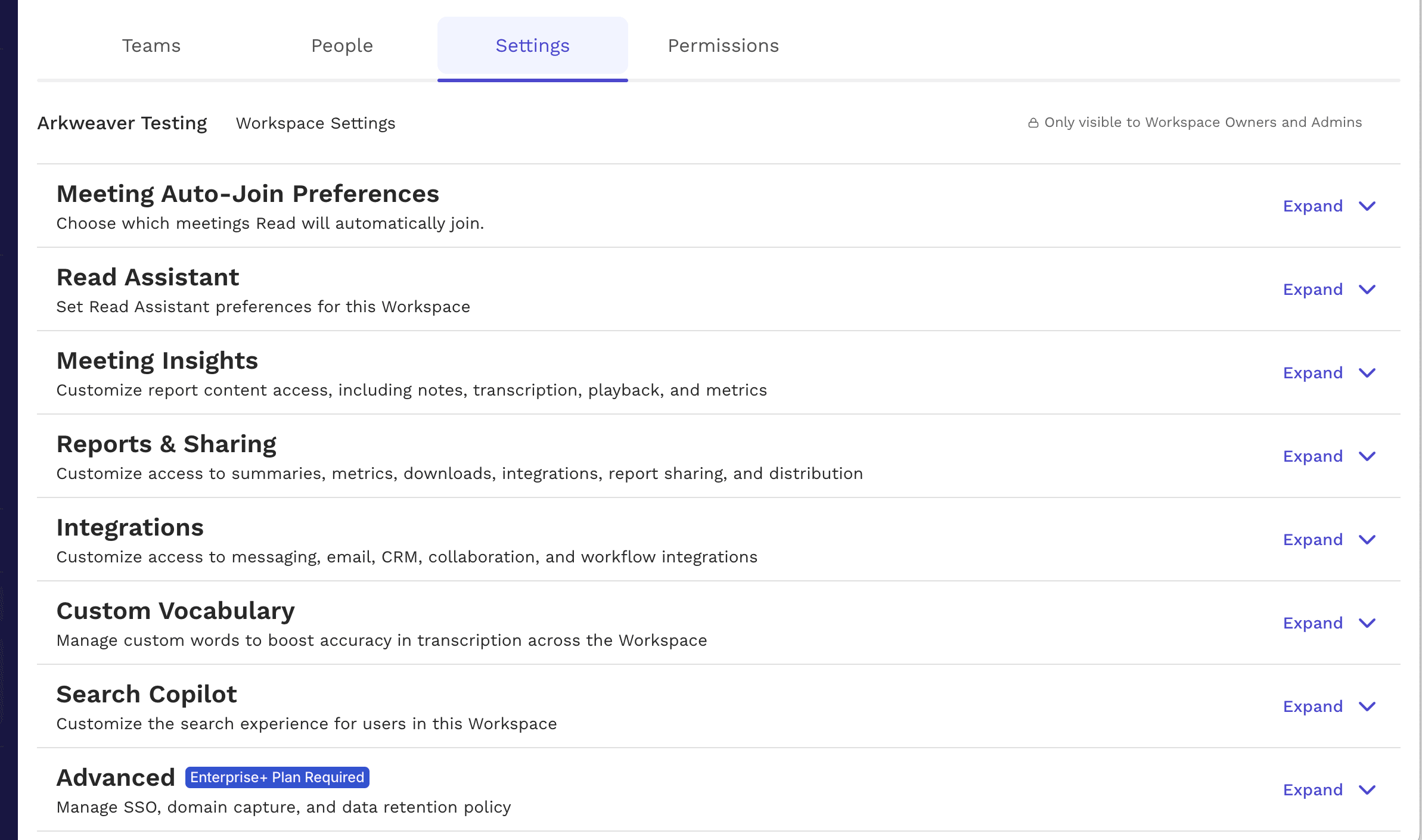
- Click Reports & Sharing
Owner Settings in Read.ai
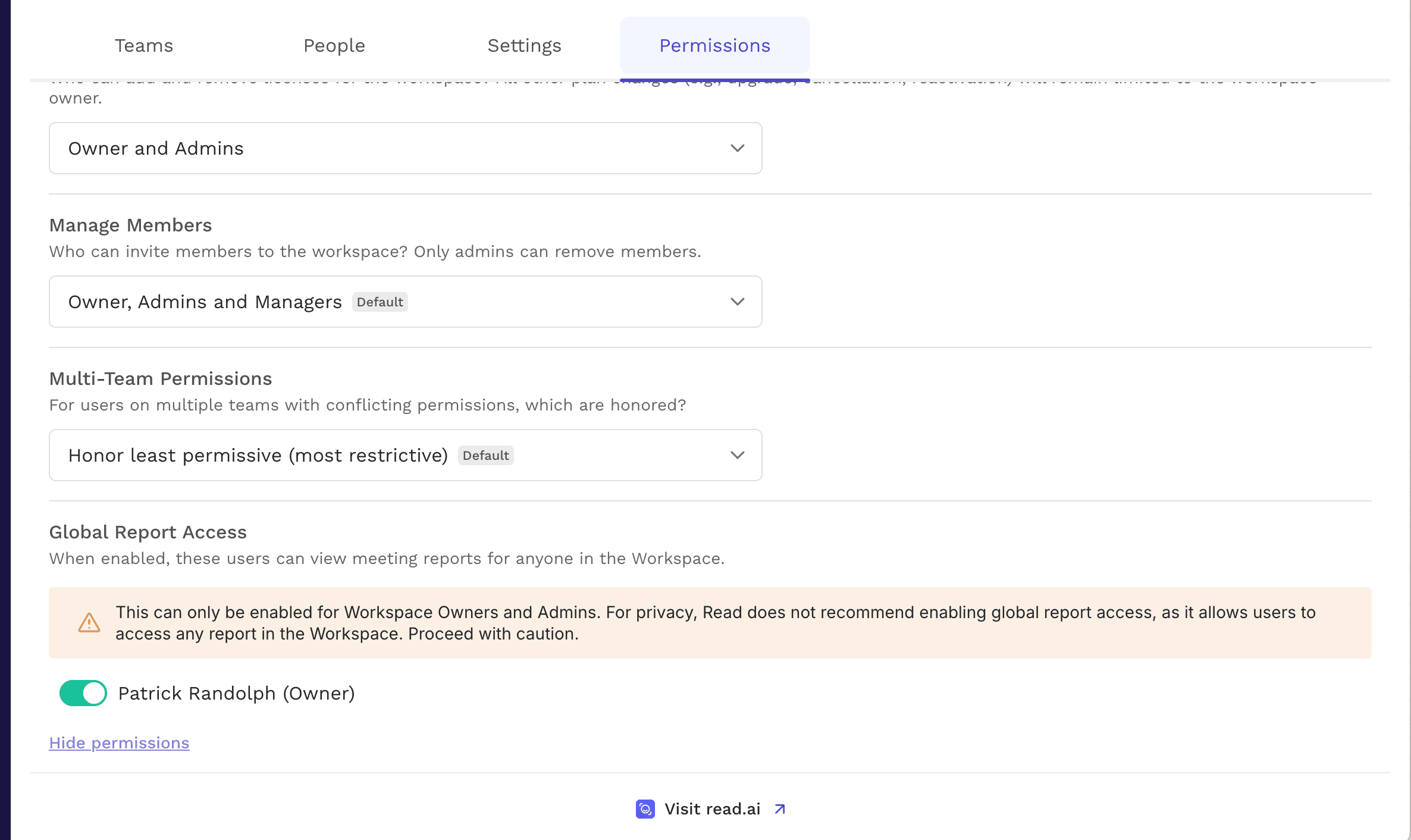
To setup such that all transcripts from your team, not just your own, are fed into Arkweaver, there is a few additional setups for the Owner. You most likely have already done this when you setup Read.ai, but it never hurts to check!
- In Workspace Settings click Permissions and ensure that you have Global Report Access
Connecting Read.ai to Arkweaver
Now it's a simple click of a button and you are connected.
- Go to https://readai.arkweaver.com/
- Click "Connect Read AI" and then you are done.
Enjoy!